Prepare charts
Introduction
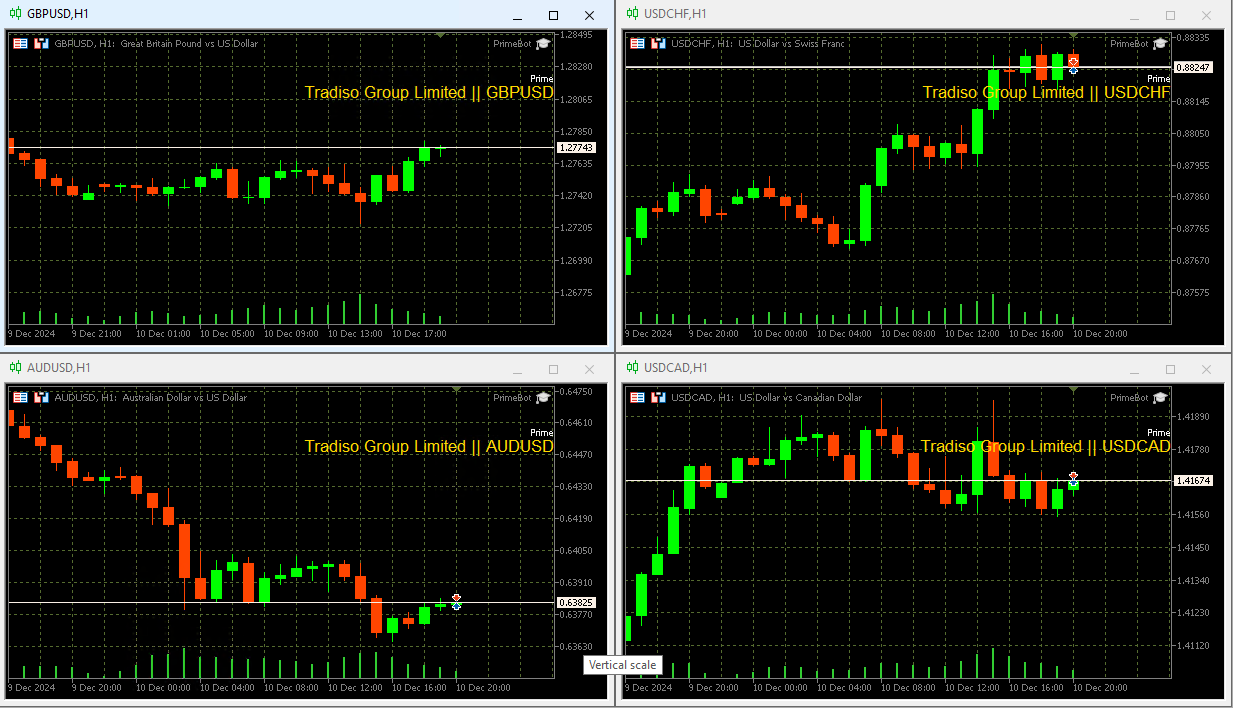
Prime will simultaneously manage 4 different currency pairs and manage positions for each pair:
- GBP/USD
- USD/CHF
- USD/CAD
- AUD/USD
If you are using a .pro account, you will have to use GBPUSD.pro instead of GBPUSD (repeat for other pairs too).
Close existing charts
By default, MetaTrader will have 4 charts already opened. We can close these charts, as we will be preparing our own set of charts.
Prepare charts
The following steps (1-6) must be repeated for each currency pair!
This example shows the process for the GBP/USD pair, repeat the same process for the remaining 3 pairs.
1. Open chart
-
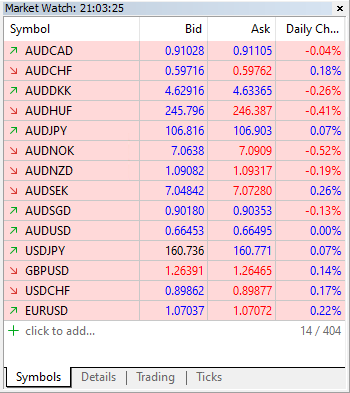
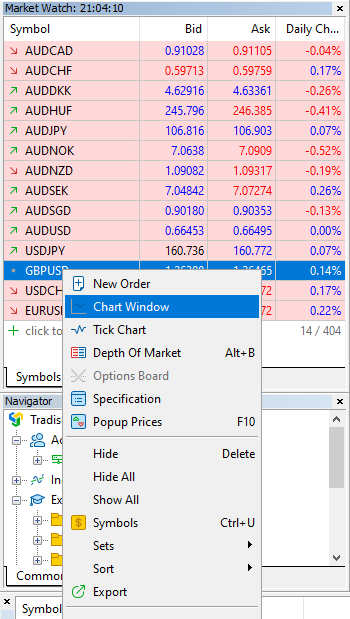
Locate the "Market Watch" panel inside MT5
-
Find the
GBP/USDcurrency pair in the list of available symbols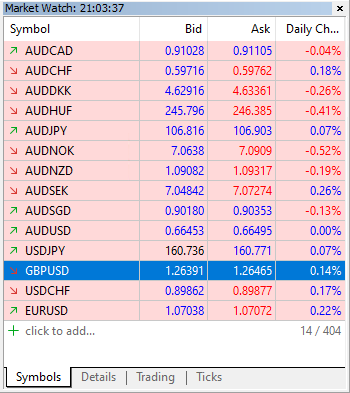 tip
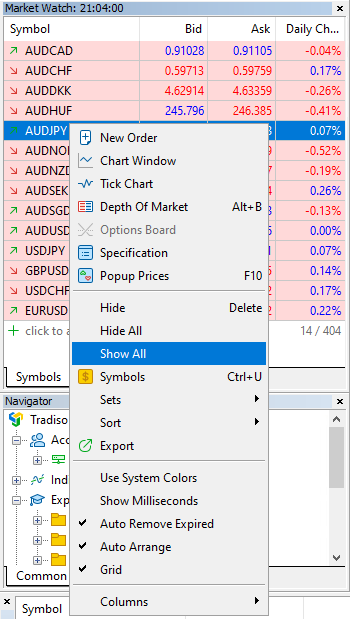
tipIf you can not locate a symbol, right click inside the "Market Watch" panel and select "Show all".
-
Now right click on the symbol and select "Chart Window"
-
A new chart will appear for the
GBP/USDsymbol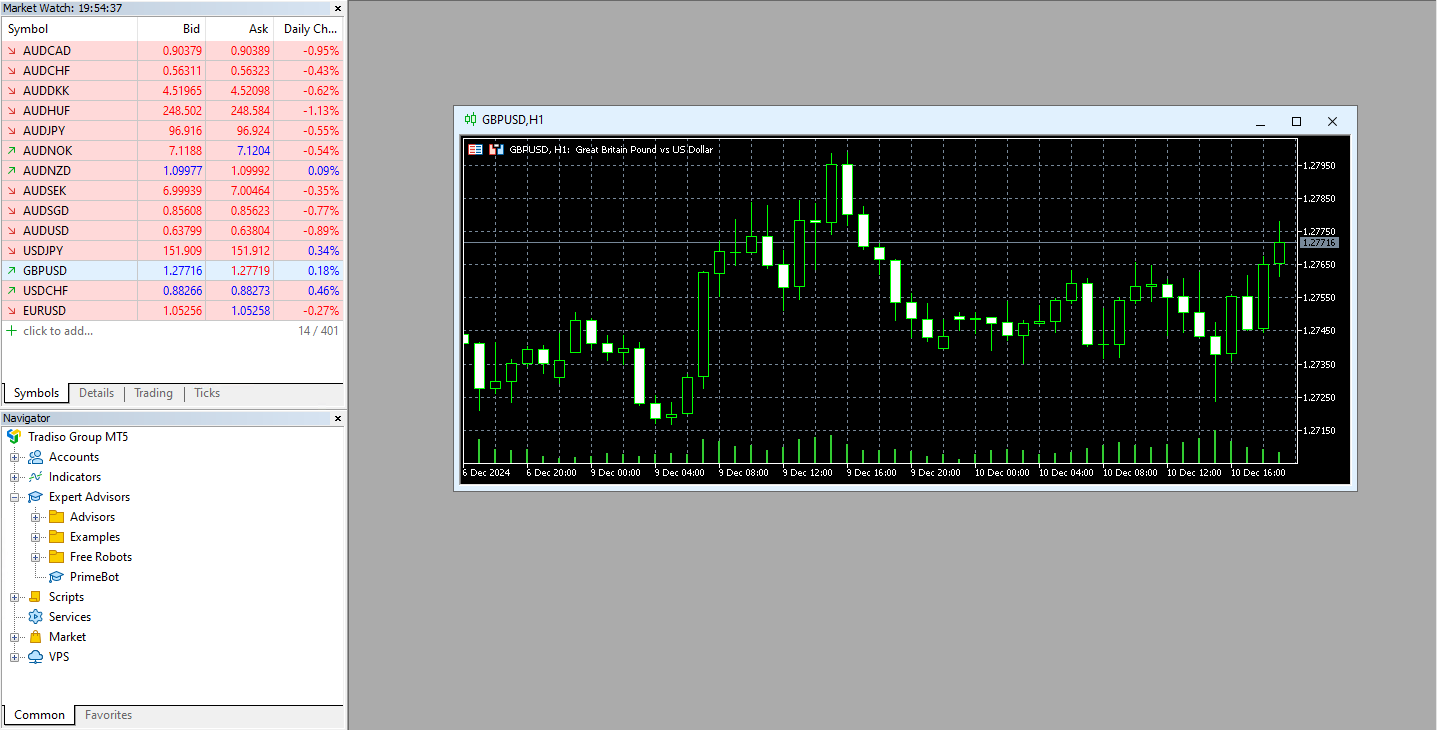
2. Change chart timeframe
Prime requires all charts to be using the 1H timeframe!
-
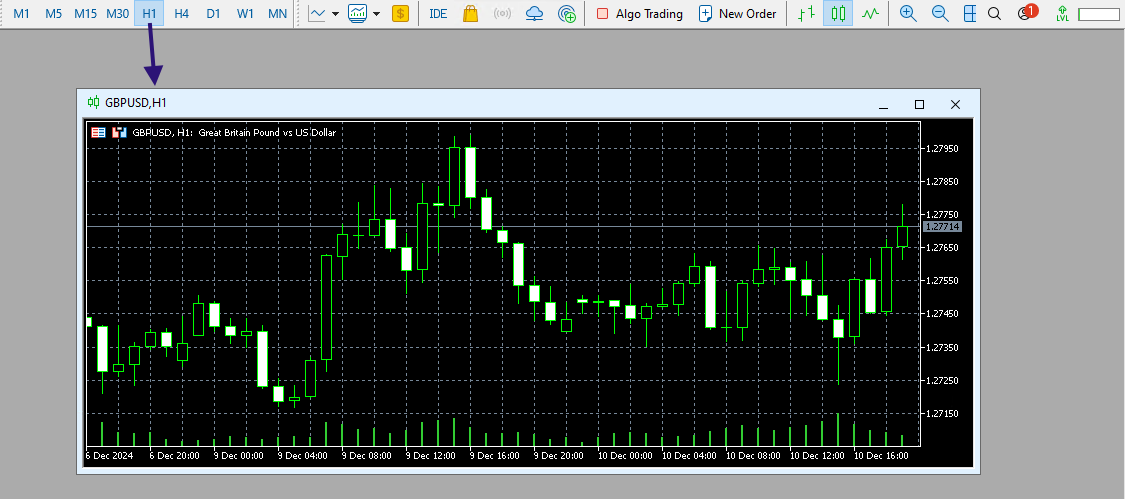
To change the chart timeframe, simply use the buttons on the top of the MT4 toolbar

-
Verify the GBP/USD chart is using the H1 timeframe
3. Attach PrimeBot to chart
Before continuing, make sure "Algo Trading" is disabled!

-
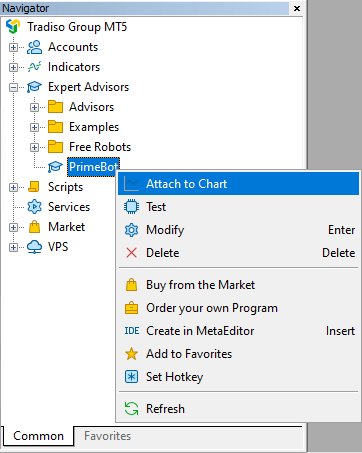
With the GBP/USD chart highlighted, navigate to the "Expert Advisors" section and right click on PrimeBot
-
Then select "Attach to a chart" and a new dialog should appear
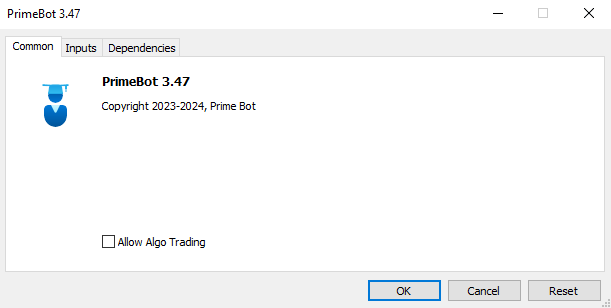
4. Update Common settings
-
In the "Expert - PrimeBot" dialog, navigate to the "Common" tab
-
Now enable the "Allow Algo Trading" checkbox
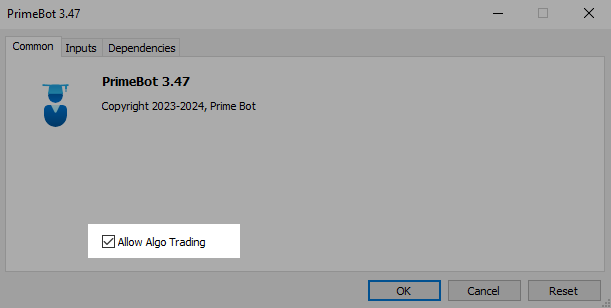
5. Update Inputs settings
-
In the "Expert - PrimeBot" dialog, navigate to the "Inputs" tab
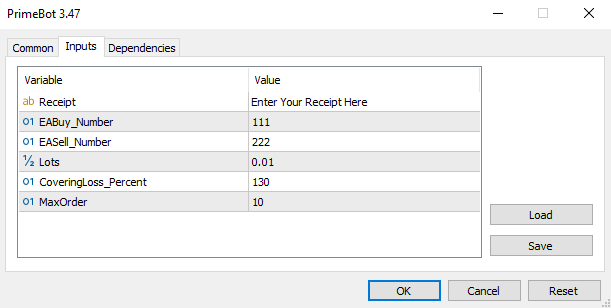
-
Enter your desired settings, based on your account balance and risk parameters
Please refer to the Configuration section for a detailed explanation of the settings.
6. Confirm settings
-
If you have updated your parameters, click "OK" to attach the PrimeBot to the GBP/USD chart
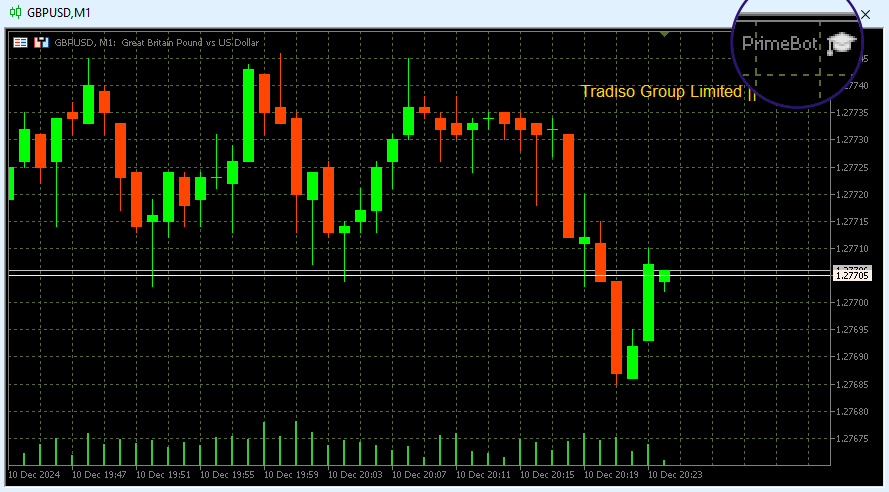
-
If done correctly, you should now see
PrimeBot 🎓in the upper right hand corner of the GBP/USD chart
Remember to repeat this process for the 3 remaining currency pairs!
Once the setup has been completed for all 4 currency pairs, your window should look like this: